
Photo Gopher allows you to pick a movie or image from your Photos Library, Finder, or Files App, and then goes digging for that item's metadata, which it then displays. We use the terms media item to refer to any movie, video, image or photo, and metadata as the descriptive and identifying information bundled with that item.
Photo Gopher goes to great lengths to find a media item's location (GPS) metadata, which it uses for the singular purpose of providing turn by turn directions from you to that favorite item. Assuming the media contains GPS information, simply choose the Show Route action to begin your journey. (You must have Location Services enabled in Settings / Privacy & Security / Location Services / Photo Gopher.)
When Photo Gopher was created the App required Full Access to your Photos Library; that is no longer the case. When Limited Access became available you pre-selected a set of available media items for Photo Gopher to use, but that was painful as you continually redefined the contents of that set.
These days no access, called Private Access, is sufficient — indeed recommended — for Photo Gopher. When the Photos Library media picker is presented you may see this alert, which can be safely closed:
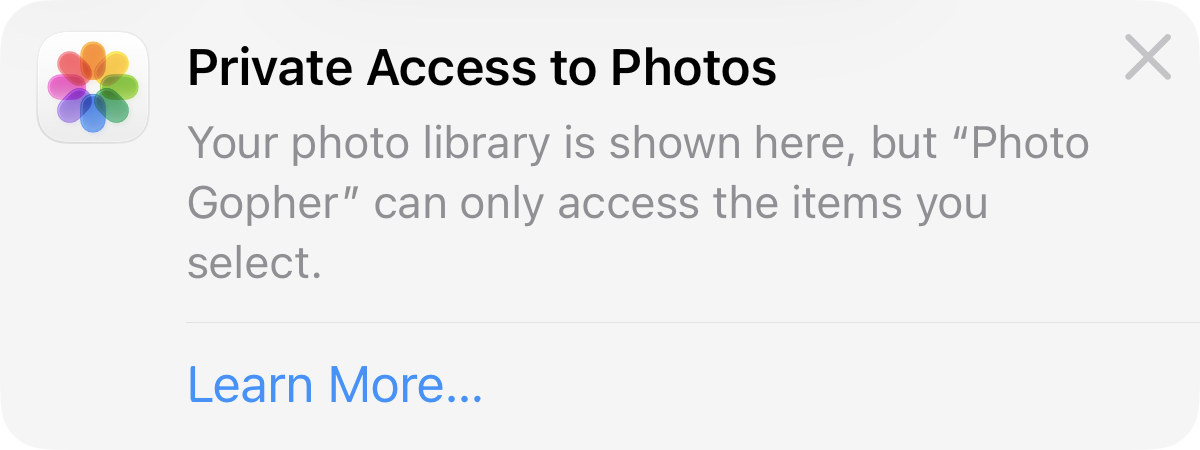
Essentially, this alert is informing you that Photo Gopher has full access to a copy of any selected media item.
Topics
A non-exhaustive list of the metadata that Photo Gopher can show follows. Thank you Phil Harvey for many of the detailed descriptions.
The Photo Gopher window consists of four tabs:
Addtionaly, you can also view the metadata of an external media item:
Once a media item is chosen a Gopher view appears showing a media thumbnail
(typically clickable), detailed metadata, and a map centered on the coordinates of the media item, assuming the item has a geotag
with GPS coordinates. The latitude, longitude and altitude are automatically copied to the pasteboard, which you can
paste directly into Maps' search field. You may also manually copy any other asset metadata ferreted-out by the Gopher:
long-press for iOS, control-click for macOS.
After selecting a media item a Gopher view appears - touch the Action button
Alas, I had no time to absorb this picturesque setting, a pano hurriedly taken on an iPhone 5 would have to suffice until I could come back for a closer look. But in 2013
exactly how to accomplish this was not obvious,
thus Photo Gopher was born and with its assistance eventually return, I did.
To investigate this picture on iOS
long touch the image and choose Save to Photos, or for macOS
drag the image onto Photos (do not control-click / Add Image to Photos, this method removes GPS metadata). In either case, check the Recents folder for the imported picture.
For a video sample, download Slow Mo Bugs and open as an external media item.
26.3.1 - 2026.03.17
6.0 - 2024.07.17
5.3 - 2022.02.02
5.2 - 2021.09.15
5.1 - 2021.01.01
5.0 - 2020.08.18
4.1 - 2020.06.02
4.0 - 2020.03.13
3.6 - 2019.03.23
3.5 - 2018.09.14
3.4 - 2018.01.12
3.3 - 2017.11.01
3.2 - 2017.10.25
3.1 - 2017.07.23
3.0 - 2016.12.14
Previous Versions:
Media Metadata
Usage
. Photo Gopher
Gopher Actions
 (or on macOS use the File menu) and the Gopher shows the allowable actions, from the following list:
The Scene That Started It All

What's New?
iOS 14.0 - 26.3.1
iPadOS 14.0 - 26.3.1
macOS 11.0 - 26.3.1
visionOS 1.0 - 26.3.1
Copyright (©) 2013 - 2026 BigCatOS. All rights reserved. | Contact